Record the tab.
Keep the sound.
Capture a browser tab with its audio and your microphone. FAKT keeps the setup clear: choose This Tab, use Chrome's picker, enable Share audio, and record.
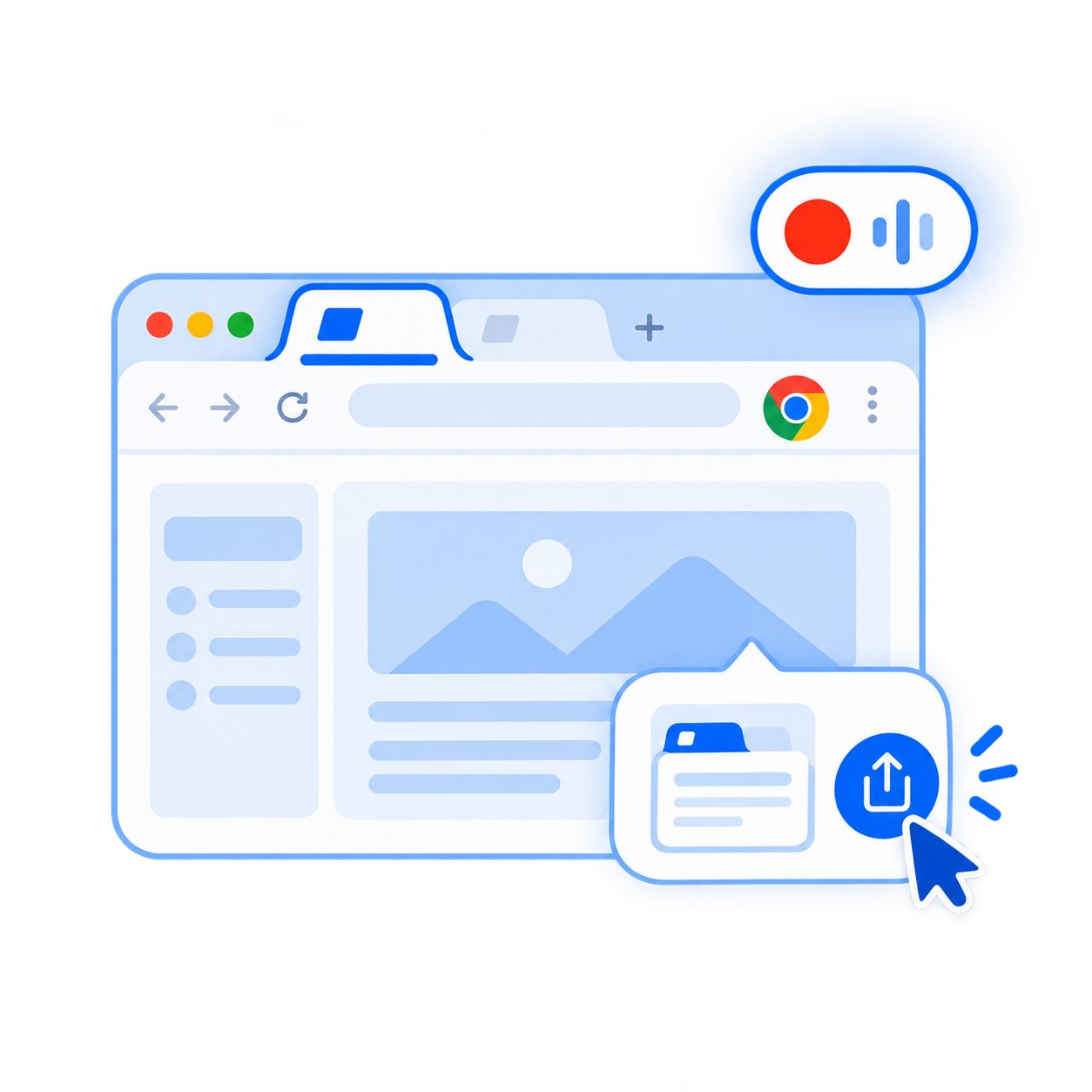
Four steps to a tab recording with sound.
Choose This Tab in FAKT
Select the This Tab recording mode, choose your microphone if needed, and leave System / tab audio enabled.
Press Start Recording
Chrome opens its sharing picker. Choose the browser tab you want to record — normally not the FAKT Video Recorder tab itself.
Enable Share audio
Chrome only includes the selected tab's sound when Share audio is enabled in the picker. This setting is controlled by Chrome.
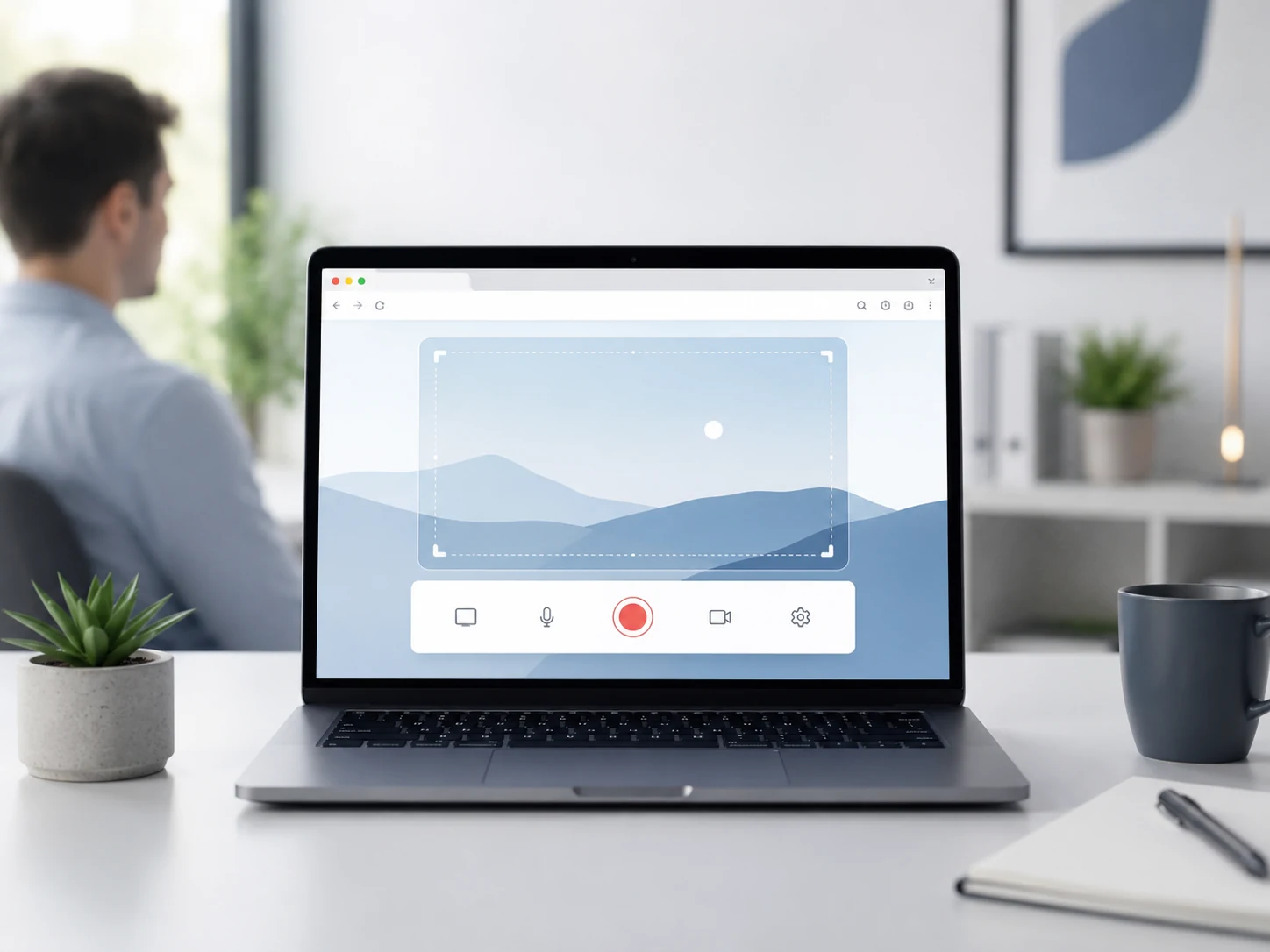
Record, preview and save
Stop when you're finished, preview locally, then save the completed recording to your computer.
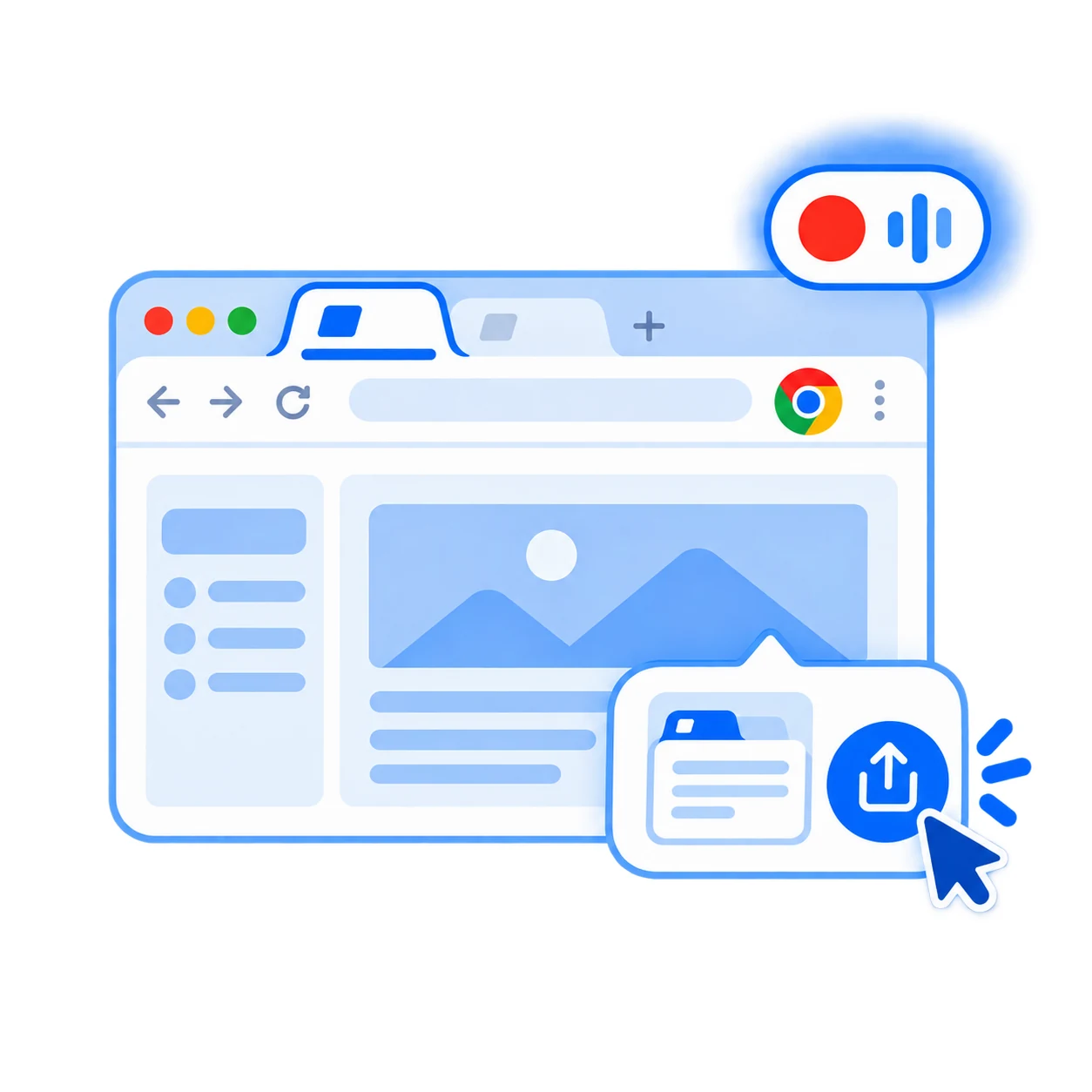
Build the recording you need.
Tab audio
Audio from the selected tab when Share audio is enabled in Chrome's source picker.
Your microphone
Select the microphone you want in FAKT before you begin recording.
Optional webcam overlay
Add your camera over the tab recording when the overlay is enabled.
If the tab is silent, check these first.
Share audio is off
Reopen the source picker and make sure Chrome's Share audio option is enabled for the chosen tab.
Wrong tab selected
Choose the tab containing the sound you actually want to capture.
System/tab audio is off
Keep System / tab audio enabled inside FAKT before starting the recording.
Record your next browser tab with sound.
This Tab + Share audio + your microphone when needed.